Documentation > Drupal
Installing and Using Drupal Theme Created with Artisteer
Installing Drupal Themes
Utilizing Menus
Customizing the Footer
Drupal Regions
Adding Modules to Header
Installing Drupal Themes
- Access your Web server using an FTP client or Web server administration tools.
- Create a folder for your specific theme under "<YourSiteFolder>/themes/" folder within Drupal installation.
For example: <YourSiteFolder>/themes/<MyNewTheme>
- Copy or upload theme files exported from Artisteer into the newly created <MyNewTheme> folder.
- Log in to your Drupal Administration.
- Go to Drupal Administration -> Appearance
(www.YourSite.com/?q=admin/appearance)
- Select your newly uploaded theme from the list of available themes for your site.
- Click the "Save configuration" button to save your changes.
In Drupal 7 there is an alternative way for installing new Artisteer themes via
Drupal Administration -> Appearance -> Install New Theme, as it is shown in
Designung Drupal Themes with Artisteer (step 5).
After installing please go to
Drupal Administration -> Appearance, enable and set default the theme.
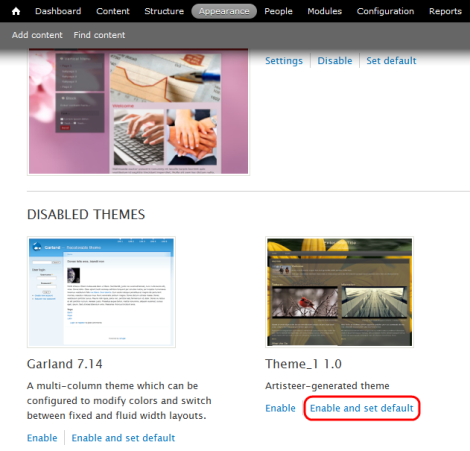
NOTE: If you'd like to add content to your website, please don't forget to switch
"Import Content" before exporting the template from Artisteer.
To import content from Artisteer please follow these steps:
- Browse for your specific theme folder in the Drupal installation navigating sites\all\themes.
For example: <DrupalFolder>\sites\all\themes\<YourThemeName>.
- Find the art_content.zip and unzip it to a folder.
- Move the unzipped art_content folder to sites\all\modules.
- Go to Drupal Administration -> Configuration -> Content Authoring -> Artisteer Content Import.
- Enable "Artisteer Content Import" and click the "Import" button.
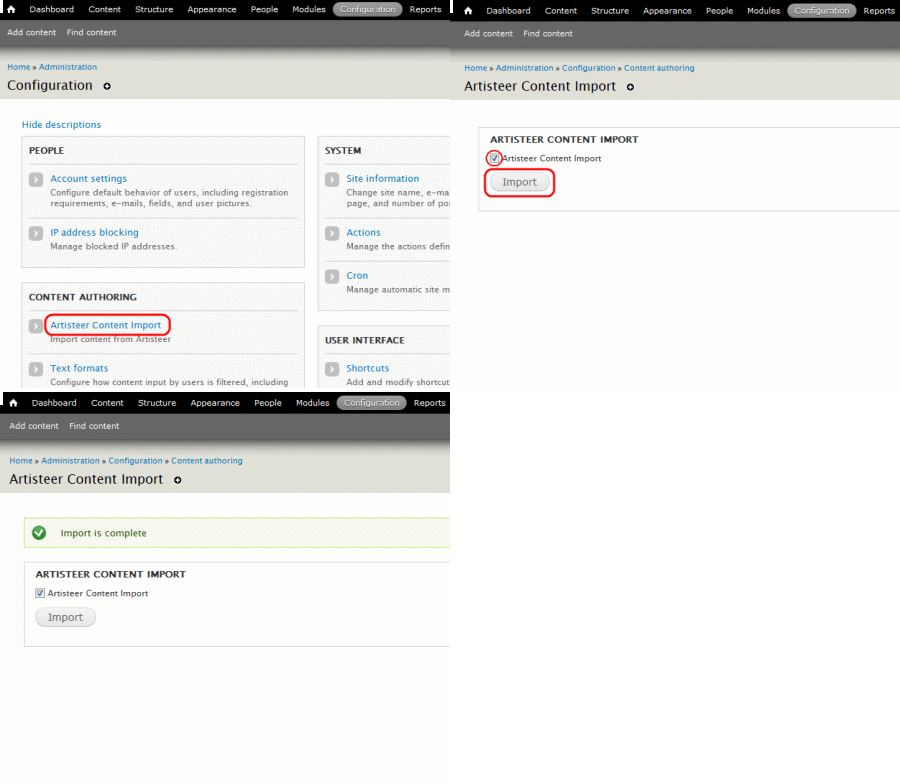
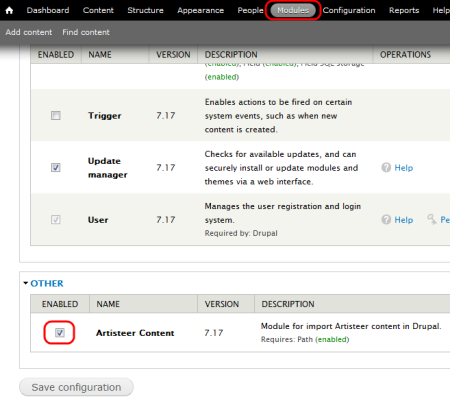
NOTE: When installing Artisteer template to Drupal for the first time, please enable the module for import Artisteer content in Drupal:
- Go to Drupal Administration -> Modules.
- Enable "Artisteer Content" module under the "Other" tab.
- The "Artisteer Content Import" option will appear under Configuration -> Content Authoring.
For more information please visit:
http://drupal.org/node/456
Utilizing Menus
Please use the following steps to utilize menu style designed with Artisteer:
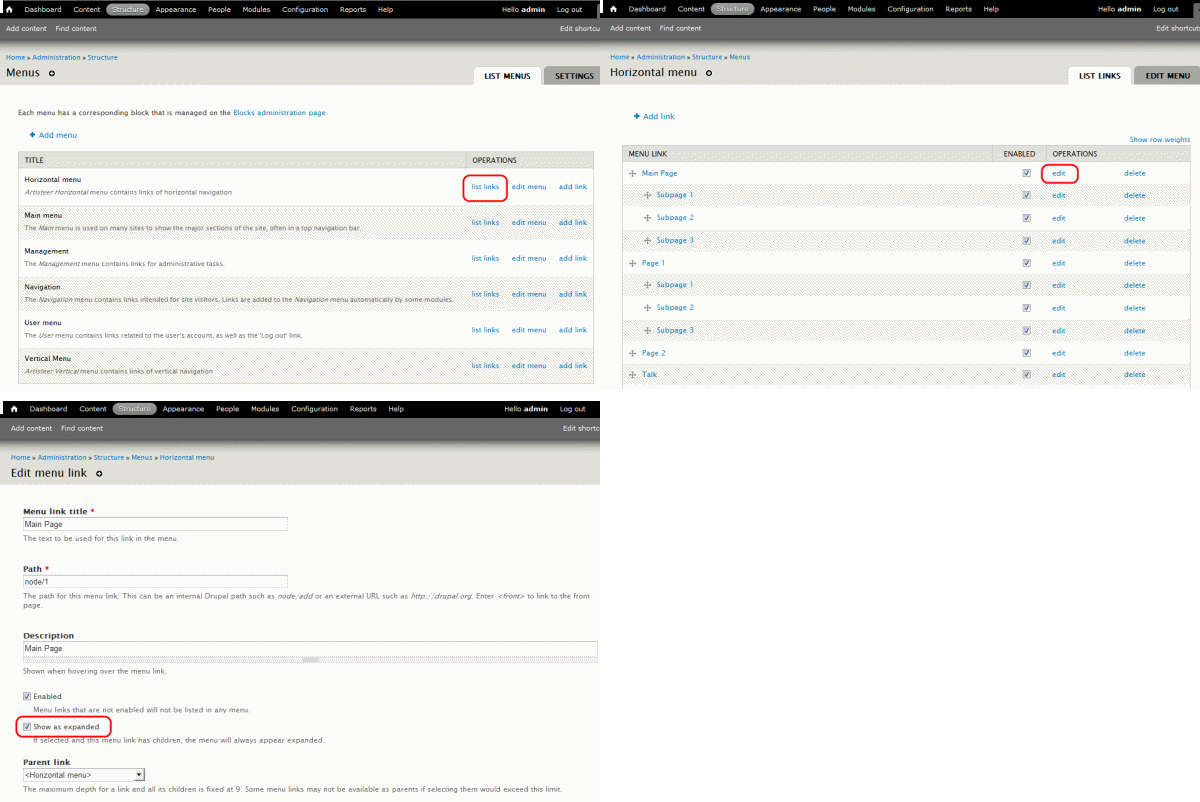
- Go to Drupal Administration -> Structure -> Menus (www.YourSite.com/?q=admin/structure/menu)
- Edit an existing menu or create a new one.
- Check the "Expanded" option for parent menu items if you want to create a drop down horizontal menu (going <MenuName> -> list links -> <menu link> -> edit).
- Go to Drupal Administration -> Structure -> Blocks (www.YourSite.com/?q=admin/structure/block)
- Place menu into the "Menu" region. If you would like to configure a vertical menu, choose "Vertical menu" in the left or right sidebar region.
NOTE: the "Menu" region can contain only a single menu, or none.
For more information please visit http://drupal.org/node/102338
NOTE: To enable Horizontal Menu subitems in Drupal 8 please go to the Drupal Structure >> Block Layout >> choose Menu block >> Configure >> expand "Menu Levels" >> "Maximum number of menu levels to display" >> set levels to >2 or "Unlimited".
Customizing the Footer
Starting with Artisteer 4 footer is considered to be part of a website content and can be imported along with the other website content.
Alternatively (or if you don't import content from Artisteer) you can customize the theme footer via Drupal Administration placing one or multiple blocks into the "Copyright" region.
Here are sample steps to configure custom footer:
- Go to Drupal Administration -> Structure -> Blocks (www.your-site.com/?q=admin/structure/block)
- Click "Configure" next to the Footer and edit the Block body field.
- Click the "Save block" button to save your changes.
Drupal Regions
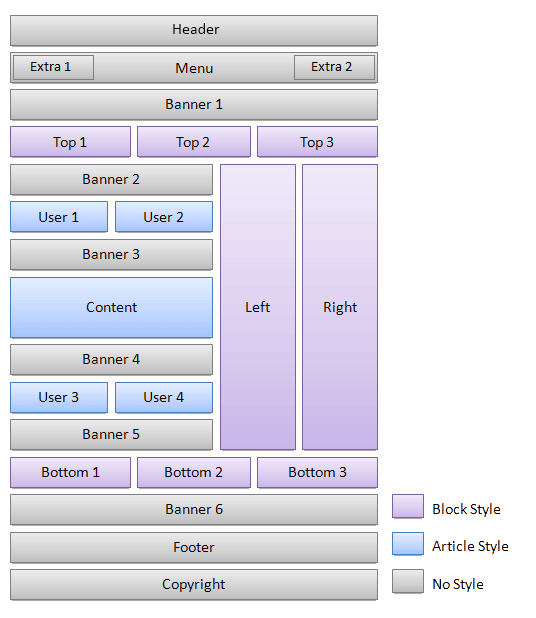
NOTE: The block templating feature has been removed from Drupal 8. Therefore all blocks in the Artisteer themes for Drupal 8 are styled as Artisteer Blocks.
For more information please visit: https://www.drupal.org/node/2011434
Adding Modules to Header
Artisteer 4.0 templates support modules in Header. The style and position of modules can be adjusted with CSS code. Please, follow the steps below:
- Add a module to Header by assigning it to the Header region.
- Open your template folder and add a similar CSS code to the the style.css file:
 .art-header > .region, .art-header > .block  {
      top: 20px;
      left: 50%;
    }
- To position individual blocks, use a debug tool like Mozilla Firebug to find out the block IDs. Then add a CSS code based on the ID:
 #blockID {
      top: 20px;
      left: 50%;
    }